Showing posts with label Azure. Show all posts

Wednesday, December 26, 2018

Azure Resource Explorer in Azure Data Studio

Using Azure Resource Explorer in Azure Data Studio you can now manage Azure SQL Server, Azure SQL database, and Azure SQL Managed Instance resources.
1. Open “Azure Data Studio” and an Azure icon appears in the left menu bar. Click the icon to open “Azure Resource Explorer”.
AzureResourceExplorer1
2. Sign into Azure
AzureResourceExplorer2
3. Click the “Add an Account” button and you will be shown with the Device Code and URL and click on “Copy and Open” button and it will open the URL and Type the Device Code.
AzureResourceExplorer3
4. Pick the Azure account to sign in
AzureResourceExplorer4
5. Once signed in, the below window will be shown.
AzureResourceExplorer5
6. Close the above browser window and go back to Azure Data Studio to see the below screenshot.
AzureResourceExplorer6
7. Expand the connection to the see the list of subscriptions and SQL Services under them.
AzureResourceExplorer7
8. Finally you can also add Firewall rule to allow access to the Azure SQL Server.
AzureResourceExplorer8

Azure Data Studio

Azure Data Studio is a cross-platform database tool for data professionals using the Microsoft family of on-premises and cloud data platforms on Windows, MacOS, and Linux. It was previously called as “SQL Operations Studio”. It has been engineered keeping Data Platform user in mind. Azure Data Studio has been designed to focus on commonly used functionality with any additional experiences made available as extensions.

Microsoft informs that “The vision of the product is to create a unified experience across heterogenous data sources regardless of their form or location: structured or unstructured, on-premises or cloud. Azure Data Studio currently offers built-in support for SQL Server on-premises and on the cloud and Azure SQL Database, along with preview support for Azure SQL Managed Instance, Azure SQL Data Warehouse and SQL Server 2019 Big Data Clusters.”

Use Azure Data Studio if you:
  • Need to run on macOS or Linux
  • Are connecting to a SQL Server 2019 big data cluster
  • Spend most of your time editing or executing queries
  • Need the ability to quickly chart and visualize result sets
  • Can execute most administrative tasks via the integrated terminal using sqlcmd or PowerShell
  • Have minimal need for wizard experiences
  • Do not need to do deep administrative configuration
Use SQL Server Management Studio if you:
  • Spend most of your time on database administration tasks
  • Are doing deep administrative configuration
  • Are doing security management, including user management, vulnerability assessment, and configuration of security features
  • Make use of the Reports for SQL Server Query Store
  • Need to make use of performance tuning advisors and dashboards
  • Are doing import/export of DACPACs
  • Need access to Registered Servers and want to control SQL Server services on Windows
Getting Started with Azure Data Studio

Download Azure Data Studio

1. Open Azure Data Studio
AzureDataStudio1
 
2. To connect to SQL Server, select
  • Connection Type: Microsoft SQL Server
  • Server: [Your SQL Server Instance name]
  • Authentication Type: [Windows Authentication/SQL Login]
  • User name: [username, if SQL Login]
  • Password: [password, if SQL Login]
  • Database: [choose the Database name you would like to connect]
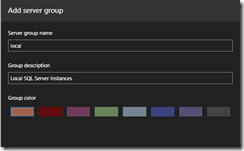
  • Server Group: [Group servers under common heading]
AzureDataStudio2
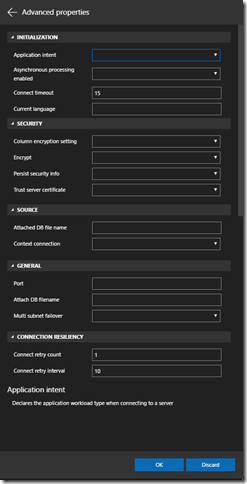
3. Set any Advanced Properties if required.
AzureDataStudio3
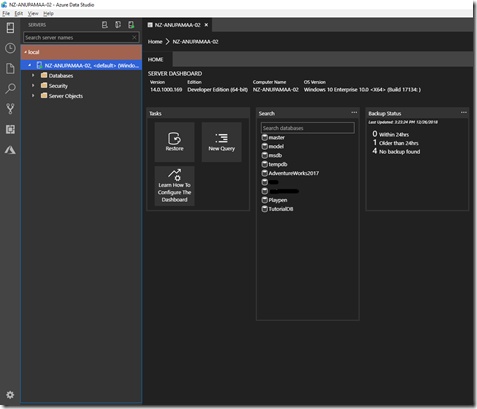
4. Click connect and you can see a screenshot similar to below.
AzureDataStudio4
Technorati Tags: ,,,

Thursday, January 04, 2018

Handy Azure Resources

These resources have been really handy for me when working on Azure projects.

Azure Services Reference

Licensing

Cloud Adoption Framework

Well Architected Framework

Azure Architecture and Design Patterns

Azure Data Centers and Service Availability

The service availability matrix was really handy to understand which services are available in which regions so we can plan accordingly.

Azure Speed Test

Allows you to check the latency from your IP location to the Azure Data Center.

Azure Tools


Technorati Tags: ,,

Saturday, October 21, 2017

SQL Database Managed Instance on Azure

Azure-Database-OptionsAzure supported Single and Elastic Pool deployment options for provisioning SQL Databases on Cloud. It now supports one more option which will allow organisations to life and shift their on-premises SQL 2005 and above database instances to a fully-managed PaaS, reducing or eliminating the need to re-architect apps and manage them in the cloud. The key difference is this new offering exposes entire SQL Server Instances to customers, instead of databases.
On the Managed Instance, all databases within the instance are located on the same SQL Server instance under the hood are just like on an on-premises SQL Server instance. This guarantees that all instance-scoped functionality will work the same way, such as global temp tables, cross-database queries, SQL Agent, etc. This database placement is kept through automatic failovers, and all server level objects, such as logins or SQL Agent logins, are properly replicated.
The new Azure Database Migration Service (ADMS) is a fully managed Azure Service that enables seamless migrations of SQL Server instances from on-premises to Azure Database Platforms with only a few minutes of downtime.
Technorati Tags: ,


Wednesday, July 12, 2017

Microsoft Azure Stack - Azure On-premises

Microsoft have announced the release of Azure Stack which allows enterprises to run Core Azure Services in their Corporate Data Centers.

Microsoft announced at its Inspire conference today, partners like Dell EMC, HPE and Lenovo will start shipping their integrated systems with Azure Stack in September 2017.

This will help lots of Enterprises who couldn't use Azure services on Cloud due to compliance or regulatory reasons.

More information on Azure Stack

Azure Stack Development Kit

Azure Stack Blog

Azure Stack Ideas for improvements

Nice video on how to bring Azure to your Data Center.

Sunday, April 02, 2017

Creating my first flow using Microsoft Flow

Scenario:

Whenever I write a blog post, I would like a tweet posted on my twitter for my followers. Initially I used to do that manually and then I was using Zapier and now I wanted to move that to Microsoft Flow. Let us see how to do that.

a) Navigate to https://flow.microsoft.com/en-us/ and sign-in.

b) Click on “Create flow from blank”

AddtoTwitterFlow1

c) Choose “RSS” as new blog posts will be available on RSS newsfeed

AddtoTwitterFlow2

d) Choose “When a feed item is published” trigger.

AddtoTwitterFlow3

e) Type the blog’s RSS URL. I have typed my blog’s RSS URL - http://feeds.feedburner.com/CodeSpot and click on “Next Step”

AddtoTwitterFlow4

f) Now I need to post a tweet on twitter once I publish my blog post. Choose the “Twitter” action and “Post a tweet” trigger.

AddtoTwitterFlow5

g) Now you need to sign in to create the connection between Microsoft Flow and your Twitter account.

AddtoTwitterFlow6

h) Provide your twitter credentials and once done you can configure your tweet text with some dynamic content.

AddtoTwitterFlow7

AddtoTwitterFlow8

g) Provide a name to you flow. In this scenario I have given the name “Blog post notification to twitter”

AddtoTwitterFlow9

h) Now my first flow has been created and started running.

AddtoTwitterFlow10

i) You can see the flows under “My flows”

AddtoTwitterFlow11

Update on 03/04/2017

I have updated the above flow to include bitlink to create shortened URL of my blog post URL. After adding it my flow looks like the below.

AddtoTwitterFlow13

Now, I have posted this blog post and below is my twitter output from Flow. Great to see that I have done this without writing a single line of code.

image

Updated twitter output with bitlink

AddtoTwitterFlow18

What is Microsoft Flow and how it differs from Logic Apps?

Microsoft Flow is a new cloud based workflow application that will allow business users to automate routine tasks through applications. Other cloud services like IFTTT (If This Then That) and Zapier have similar functionality and also work across many services. Flow also comes with a list of pre-defined templates. I have been using Zapier until now and moving my zaps to Microsoft Flow.
Flow
Flow vs. Logic Apps
  • Both Flow and Logic Apps are configuration based Integration services which allows users to automate their tasks including integration with SaaS APIs. Flow is built over Logic Apps.
  • Flow is targeted against business users while Logic Apps is targeted against IT Pros/Developers.
  • Flow is used for small scale integration while Logic Apps are used for mission critical applications.
  • Develop a Flow in production directly while with Logic Apps you can use Visual Studio, Source Control, testing, support and Automation.
  • Flow has standard security practices like data sovereignty, encryption at rest for sensitive data, etc. while Logic Apps has the security assurance of Azure.
In general if it is a simple integration and doesn't require Enterprise capabilities then go with Flow or use Logic Apps for simple/complex integrations requiring Enterprise capabilities (DevOps, Security, Source Control) and if functionality is not available in Logic Apps then use Azure Functions to write your own transformation code.
Pricing - https://flow.microsoft.com/en-us/pricing/
Flow Templates - https://flow.microsoft.com/en-us/templates/
Feedback & Ideas - https://powerusers.microsoft.com/t5/Flow-Ideas/idb-p/FlowIdeas
Release Notes - https://flow.microsoft.com/en-us/documentation/release-notes/

Logic Apps and why do we need them?

Logic Apps is a integration Platform as a Service (iPaaS) to automate and orchestrate integration workflows and provides connectivity to other Software as a Service (SaaS) applications. It provides the ability to build powerful enterprise grade integration solutions. The Visual designer allows any technical user or developer to model and automate business processes.
Why do we need Logic Apps?
Integration with Enterprise, custom or Commercial Off-The-Shelf (COTS) APIs are always considered as complex and time consuming. As business moves towards digitization integrating with Legacy systems and SaaS applications becomes extremely important. With Logic Apps, API Integration is made easy.
Logic Apps has large number of connectors for SaaS APIs and on-premise APIs. The connectors are added regularly to Logic Apps. Full list of the connectors can be found here.
LogicAppsConnector
Advantages of Logic Apps
  • Logic Apps are metadata driven. Metadata is exposed in a format using Swagger.
  • Logic Apps has a simple User Interface and developers can get started using Logic Apps within minutes. Logic Apps are built for faster and agile development. Pre-defined templates allow developers to start developing workflows quickly.
  • Scaling APIs based on the demand has been really hard historically. With Logic Apps service being on Azure and is "serverless" you can meet the demands of your client needs easily. Logic Apps will handle scale, availability and performance automatically to meet demand.
  • Exception Handling is really key for any Integration solutions and Logic Apps provides tools and patterns to make sure that the integrations are robust and resilient against failures using features like retries, scopes, and results.
Pricing
Always keep an eye on the pricing with Azure solutions. The details around Logic Apps pricing is here.
Ideas & Feedback
You can also provide your feedback or ideas on Logic Apps here.
Release updates
Microsoft updates Logic Apps with new features and enhancements on a regular basis and release updates can be found here.

Sunday, February 05, 2017

Set up a sample SQL Database on Azure

1. Log in to the Azure Portal.

2. Select SQL Databases from the side menu

Azure-SQLDatabase1

3. Click on Add to create a new SQL Database

Azure-SQLDatabase2

4. Type the Database name, select a resource group (can be either new or existing) and Select source as Sample (AdventureWorksLT) to create a sample database with tables or go with Blank Database option if you want to create your own tables

Azure-SQLDatabase3

5. Configure the Server and then click Create button.

Azure-SQLDatabase4

6. Once the sample SQL Database is successfully deployed, you can see the details in the below screen.

Azure-SQLDatabase5

7. Note, to change the pricing tier to basic if you are using for learning purposes.

Azure-SQLDatabase6

8. Connect to the Azure Database server using SQL Server Management Studio.

Azure-SQLDatabase7

9. You will be prompted to sign into your Azure account as shown below.

Azure-SQLDatabase8

10. Once signed in successfully, a firewall wall rule will be created to allow your PC to communicate to the Azure database.

Azure-SQLDatabase9

11. You can now successfully connect to the Azure Server and browse the AdventureWorksLT sample database.

Azure-SQLDatabase10

Technorati Tags: ,

Wednesday, January 18, 2017

Azure Pricing Calculator

Pretty cool to use this tool now to calculate the pricing for the Azure features I am using or planning to use. It will allow me not getting into a situation where I end up using my credits without checking the cost for the features.
https://azure.microsoft.com/en-us/pricing/calculator/
AzurePricingCalculator
Technorati Tags: ,

Sunday, December 18, 2016

Azure Analysis Services

AzureAnalysisServicesAzure Analysis Services is an enterprise grade OLAP engine and BI modeling platform, offered as a fully managed platform-as-a-service (PaaS). It provides capabilities to get your semantic models on to the cloud and to handle spikes and demand. It is built on SQL Server Analysis Services. It is compatible with SQL Server 2016 Analysis Services Enterprise Edition and supports Tabular models 1200 compatibility.
Developers can also use the existing tools, SQL Server Data Tools for Visual Studio and SQL Server Management Studio to manage the Azure Analysis Services models.
Developers can create a server in seconds and use Azure Active Directory to manage user identity and role based security.
AzureAnalysisServices1
The on-premises data gateway acts as a bridge, providing secure data transfer between on-premises data sources and your Azure Analysis Services server in the cloud.
AzureAnalysisServices-Architectue
Azure Analysis Services – Architecture
Technorati Tags: ,

Saturday, April 25, 2015

AppFabric Service Bus Bindings

NetOnewayRelayBinding

NetOnewayRelayBinding supports one-way messages from client to the server. The method signatures for one-way methods in the service contract must not return any values. One-way methods are optimized for one-way TCP communications between the senders to the relay service and then to the receivers. The default size of the message is set to 65,536 bytes. The receiver using the NetOnewayRelayBinding opens a bidirectional TCP connection on outbound TCP port 828 for an SSL connection and TCP port 808 for a non-SSL connection. If the TCP outbound ports are unavailable due to environmental policies or port conflicts, you can configure the AppFabric Service Bus to use the HTTP protocol instead. The HTTP protocol polls the relay service through outbound ports 443 for SSL and 80 for non-SSL communications.

NetEventRelayBinding

NetEventRelayBinding extends the netOnewayRelayBinding by providing multicast messaging between multiple subscribers and publishers listening on the same rendezvous service endpoint. The netEventRelayBinding class inherits from netOnewayRelayBinding. This is the only binding that supports multiple receivers on the same service URI.

NetTCPRelayBinding

netTcpRelayBinding is the recommended and most frequently used AppFabric Service Bus binding. It uses TCP as the relay transport and is based on the WCF netTcpBinding. It performs better than the HTTP bindings, because it uses TCP for message delivery and the messages are encoded in binary format. NetTcpRelayBinding supports WS-ReliableMessaging, which is turned off by default. You can turn it on by setting reliableSessionEnabled to true. In WCF, you typically use netTcpBinding to create service endpoints reachable within the intranet, but with netTcpRelayBinding you can create service endpoints reachable over the Internet. This makes communication over the Internet faster than with HTTP bindings. Similar to netOnewayRelayBinding, netTcpRelayBinding establishes an SSL-protected control channel using outbound TCP port 828 and a non-SSL data channel using outbound TCP port 818.

HTTPRelayBinding

AppFabric Service Bus supports the following HTTP relay bindings:

  • BasicHttpRelayBinding
  • WebHttpRelayBinding
  • WSHttpRelayBinding
  • WS2007HttpRelayBinding
Technorati Tags: ,

Sunday, February 16, 2014

SQL Azure Reporting Services

Windows Azure SQL Reporting is a cloud-based reporting service for the Windows Azure Platform built on SQL Server Reporting Services technologies.

SQL Reporting service is available to current subscribers, but should not be used for new software development projects. The service will be discontinued on October 31, 2014.

An alternative to SQL Reporting is to use one or more instances of SQL Server Reporting Services (SSRS) running on Windows Azure Virtual Machines (VM).

A known issue of SQL Reporting is that report execution is slower than SSRS running on premises. In contrast, performance of SSRS on a VM is similar to the performance you might expect from an on-premises SSRS instance.

Transition from SQL Reporting to SQL VM provides the following advantages:

  • Extensible report server for customized reporting
  • Scheduled report execution and delivery
  • Integration with hybrid solutions
  • Faster Performance

Saturday, April 24, 2010

Visual Studio 2010 and Windows Azure launch

I went for the Visual Studio 2010 and Windows Azure launch yesterday. Visual Studio 2010 as usual has been released with lots of new features.

The Keynote on Windows Azure platform was provided by David Chappell. His presentation was really good and more informative too. I learnt a lot about Windows Azure yesterday.

Check his blog http://www.davidchappell.com/blog/. He has got some good white papers on Windows Azure Platorm and Applications Lifecycle Management (ALM).

Thursday, April 22, 2010

TownHall - Engagement tool from Microsoft

Microsoft has launched a Cloud Computing product "TownHall" that would help Government to engage with the public using social media tools.

TownHall is a cloud based solution hosted on the Windows Azure Platform.

http://www.microsofttownhall.com/

TownHall allows users to post questions, raise concerns and share ideas with other community members, and vote on positions.

Concept looks good but UI is not looking so good.